BLACK FRIDAY SALE30% OFF every FIGMENT asset and tierDiscounted at checkoutEnds in 6d 23h 59m 59s

Automatic Shutdown Timer for Windows

A free Windows batch script that schedules an automatic shutdown after a set time — so a PC left rendering overnight turns itself off instead of wasting power. For Windows 10 and 11.
PRODUCT DETAILS FREE DOWNLOAD
Donations
welcome

SHUTDOWN TIMER

Automatic shutdown scheduler — Set hours + minutes, and let Windows shut down on its own
•Any duration—hours and minutes, even if it adds up to days
•Fractional numbers—0.5 hours equals 30 mins, using . or , as separator
•Easy to cancel—close the window, or hit R to change the timer
•Default hour/min values—set them once, then press Enter to start
•Autostart option—starts with the default values on script run
•A true shutdown—no hibernation or sleep, so save your work first
•Config in Notepad—edit the script file to change options

Built with AI

€0+
donations welcome
COMMERCIAL USE INCLUDED
FREE DOWNLOAD
1 KB · instant download
Free to download, or pay what you like. VAT and sales tax are added to any amount you choose, at checkout where either applies.

How to install and use

01
Run the script
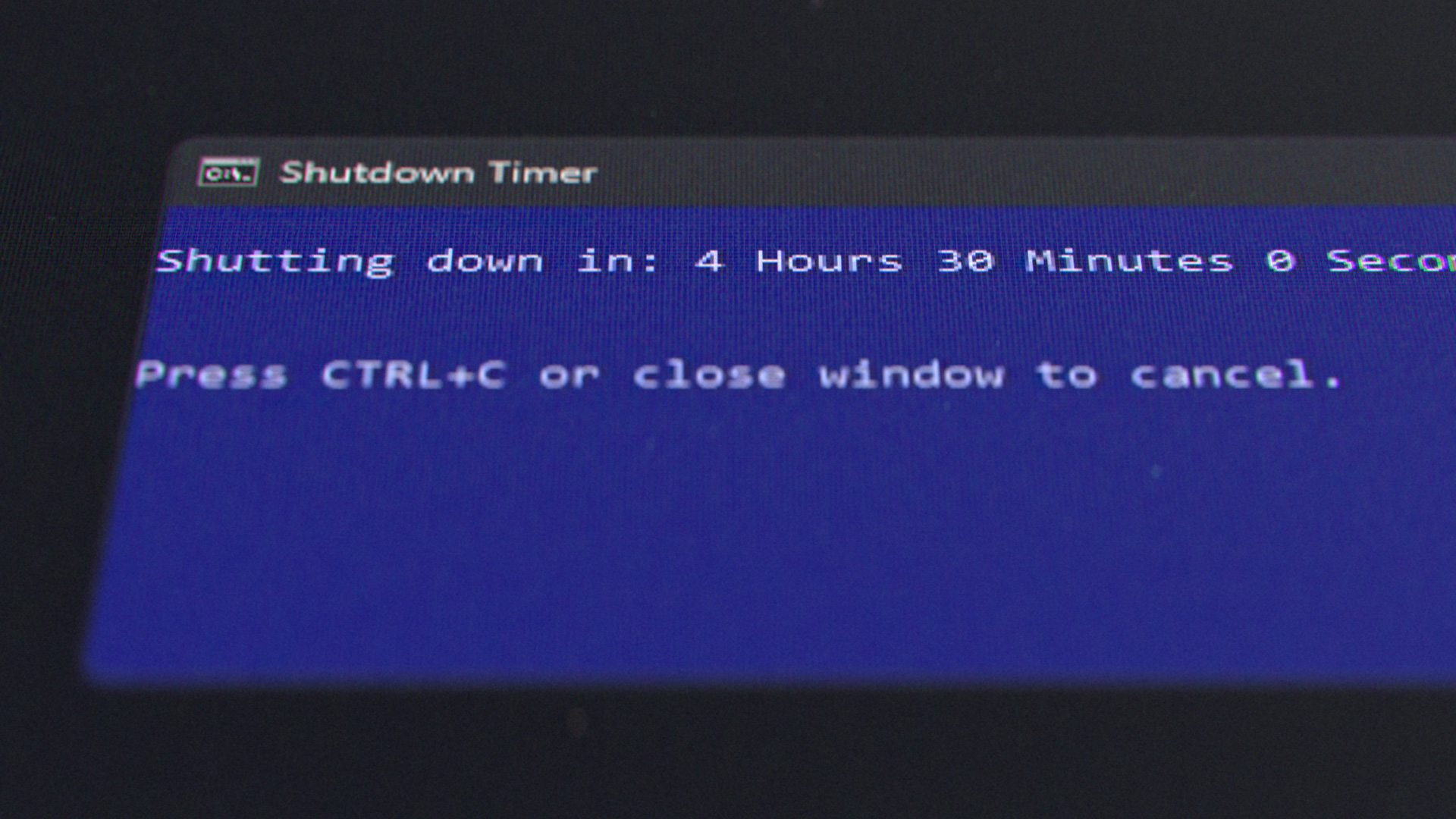
Double-click ShutdownTimer.bat, enter the hours and minutes, and press Enter to start the timer. Close the window at any time to cancel the shutdown — or press R to enter new timer values.
02
Add a desktop shortcut
The script runs from any folder, so keep it wherever suits you. For quick access, right-click it and choose Send to › Desktop (create shortcut), then start the timer from the shortcut instead.
Optional: keep the window as designed
To keep the window size and colors as designed, do one of the following in the shortcut properties:
  • Change shortcut target to:
    C:\Windows\System32\conhost.exe cmd /c "c:\replace-this-path\Shutdown Timer\ShutdownTimer.bat"
  • Or, click Advanced and enable "Run as administrator"

Your Admin/User (UAC) privileges may impact ability to execute batch scripts.

Watch the script in action
Short video showing how the script works.
Watch more FIGMENT tutorials

Technical specifications

Requirements

Operating system
Windows 10 or 11

Version history

v1.01
2026-10-01
  • Fixed: Timer accuracy. Countdown now syncs to system clock, so long timers no longer run late.
  • Added: Default values for hours and minutes in config. Run script and hit Enter to start timer immediately using config values.
  • Added: Option "autostart" in config. Set it to "yes" to start timer on script run using default values without user input.
  • Added: Press R during the countdown to change the timer, even when autostart is on.
  • Added: Decimal values for hours and minutes, using either . or , as separator. E.g. 0,5 hours = 30 minutes, 0.5 minutes = 30 seconds.
  • Changed: The last 60 seconds of the countdown are shown with a red background.
  • Fixed: Bug that could cause errors if values like "010" was entered. Leading-zeros are now stripped.
v1.0
2025-12-29
  • Initial release.

Frequently asked questions

Still unsure about something? Ask me anything
Will it close my programs without saving?
+
By default, yes. The config option FORCE_CLOSE is set to YES, so when the timer runs out the computer shuts down even with programs still open, and anything unsaved is lost. Save your work before you start the timer. Set FORCE_CLOSE to NO and any app with unsaved work can block the shutdown instead (use at own risk).
Can I cancel a shutdown once it is scheduled?
+
Yes. Close the window at any time before the countdown ends. The script only calls Windows' shutdown command once the countdown completes, so until then there is nothing to cancel but the timer.
Can I change a timer that is already running?
+
Yes. Hit the R button to cancel the current timer and input your new values for hours and minutes.
How exact is the timing?
+
Within a second. Since v1.01 the countdown syncs to the system clock, so it no longer drifts on long timers: whatever the duration, the shutdown comes 0–1 seconds after the set time.
Is it safe to run a .bat file?
+
Only run a script from a source you trust. This one is plain text: open it in Notepad and read every line first, or paste it into an AI and ask what each part does. It counts down, then calls Windows' own shutdown command.
It's free. How can I support it?
+
Pay what you want when you download it, or come back once it has saved you an evening and buy me a coffee. Leaving a rating or review on Gumroad helps too. Either way, the tool stays free.

Related products

Prices exclude VAT and sales tax. Where either applies, it’s added at checkout and included in the total you see before paying. Questions? support@figment.dk
© 2008–2026 FIGMENT. All Rights Reserved.